Step-by-step guide
Complete guide to the Beautiful GPX editor
From importing your GPX or Strava track to high-resolution PNG export: this guide walks through every panel with real screenshots. Follow the steps in order or jump to the section you need.
Step 1 Discover the interface
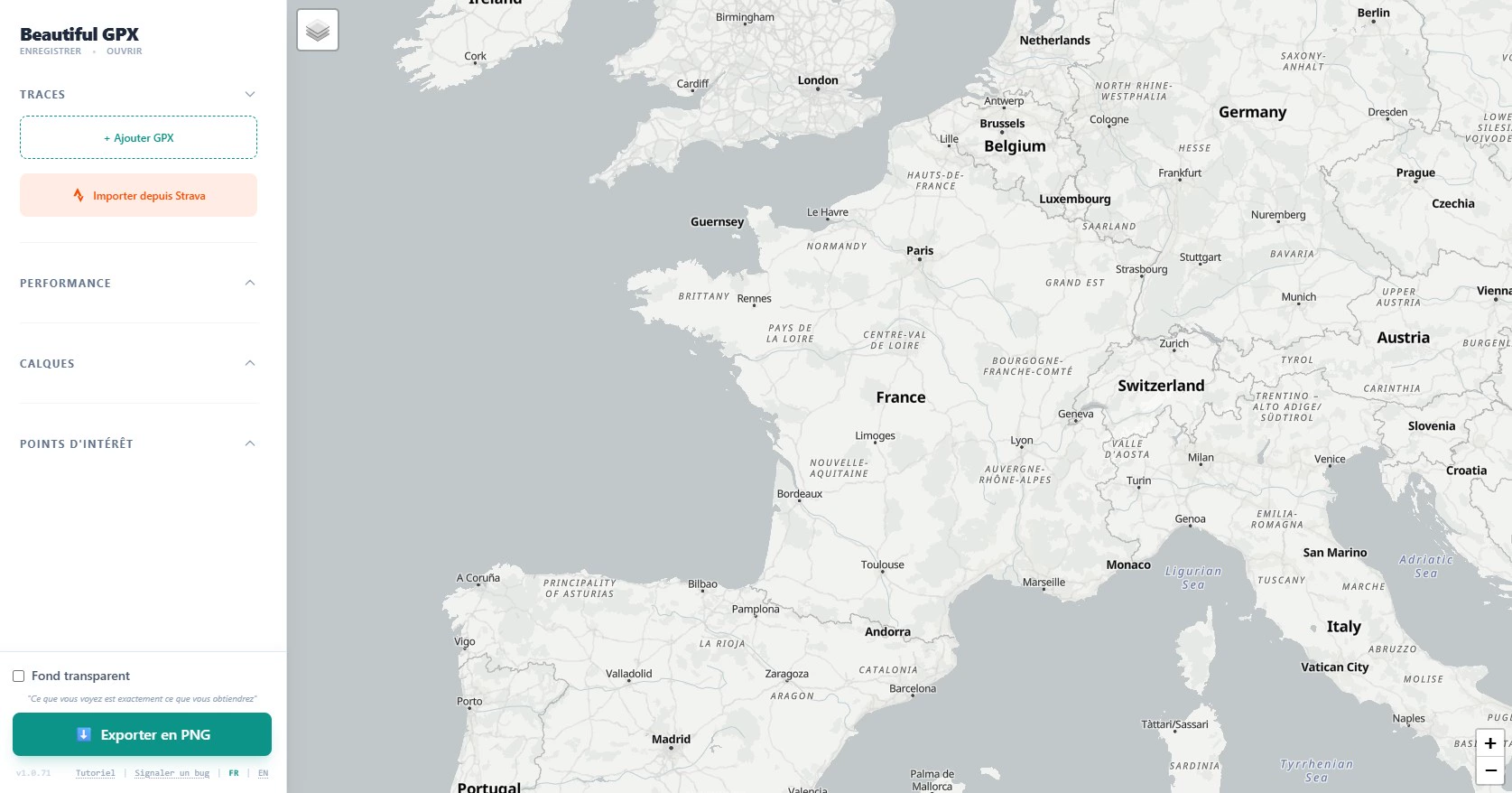
The editor has an interactive map in the center and a sidebar with tabs: Tracks, Performance, Layers, POIs (points of interest), and Export. Start by importing your activity.
Step 2 Import a track (Strava or file)
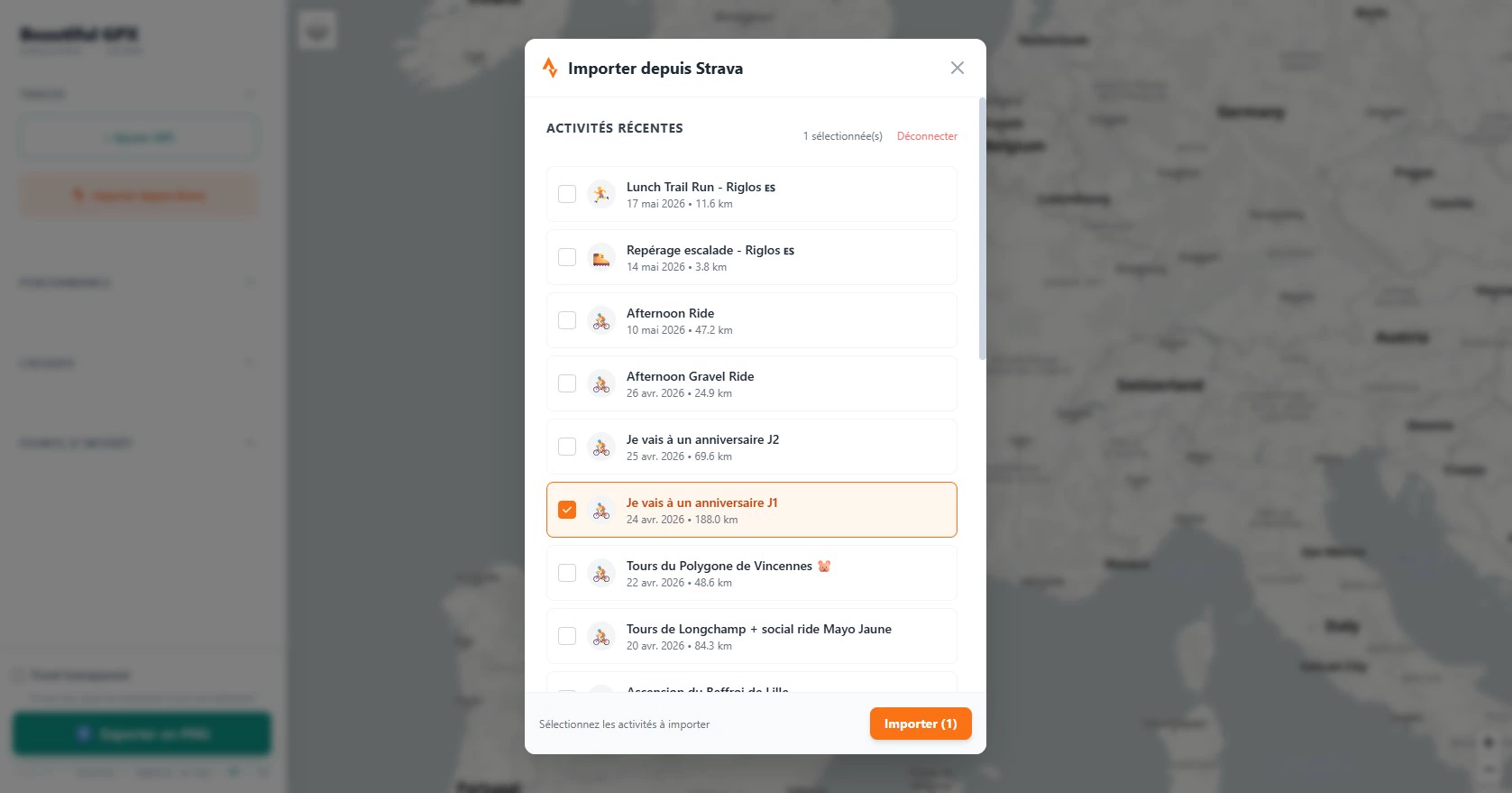
Click “Import GPX” to select a .gpx file, or connect your Strava account to pick a recent activity.
- .gpx file: exported from Garmin, Wahoo, Suunto, etc.
- Strava: choose the activity from the list after OAuth login.
Step 3 Customize the track
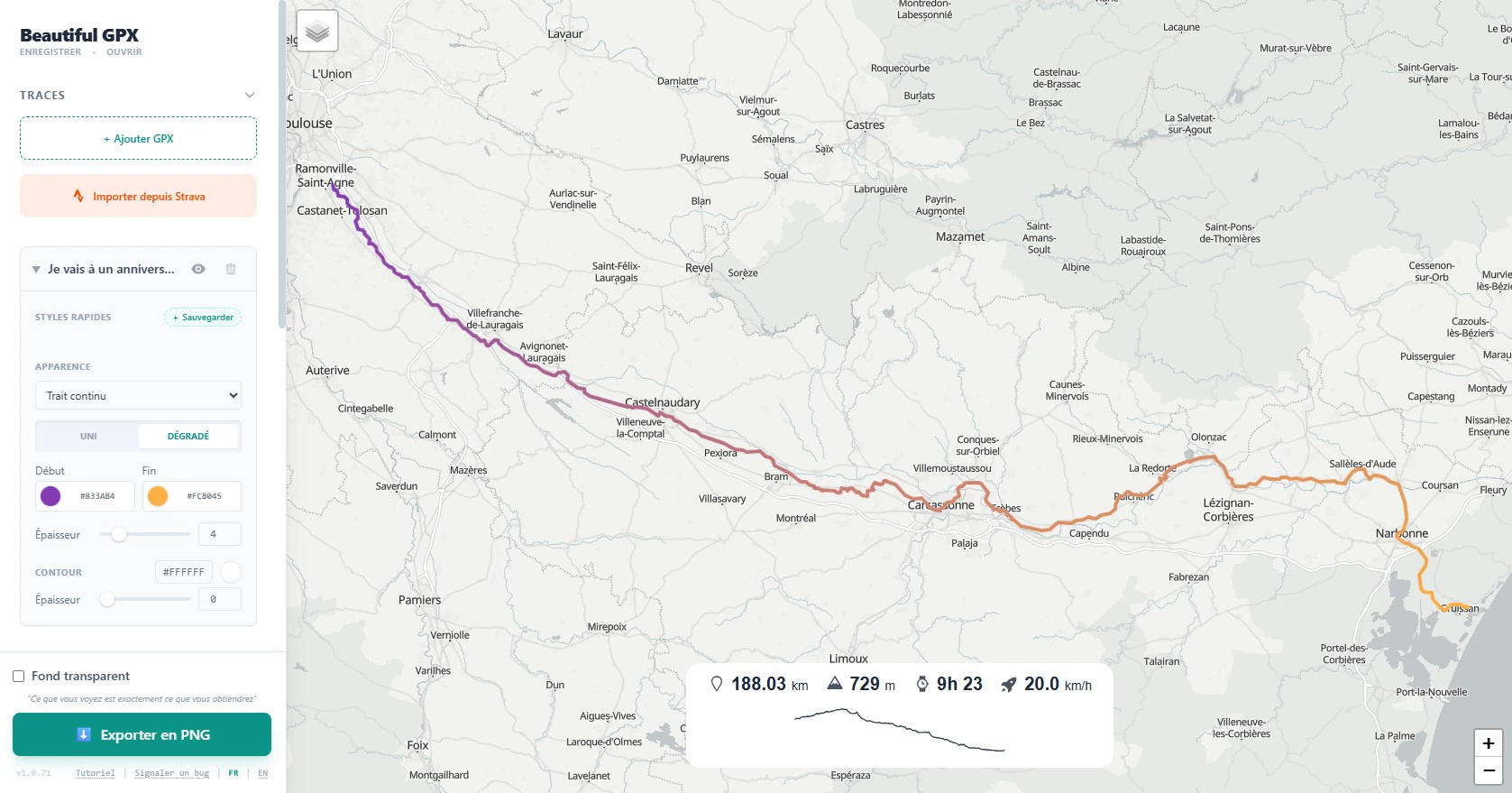
In the Tracks tab, adjust color, line thickness, and gradients. You can display multiple tracks with different styles.
💡 Tip: neon colors (red, cyan, yellow) stand out best on photos and videos.
Step 4 Overlay performance stats
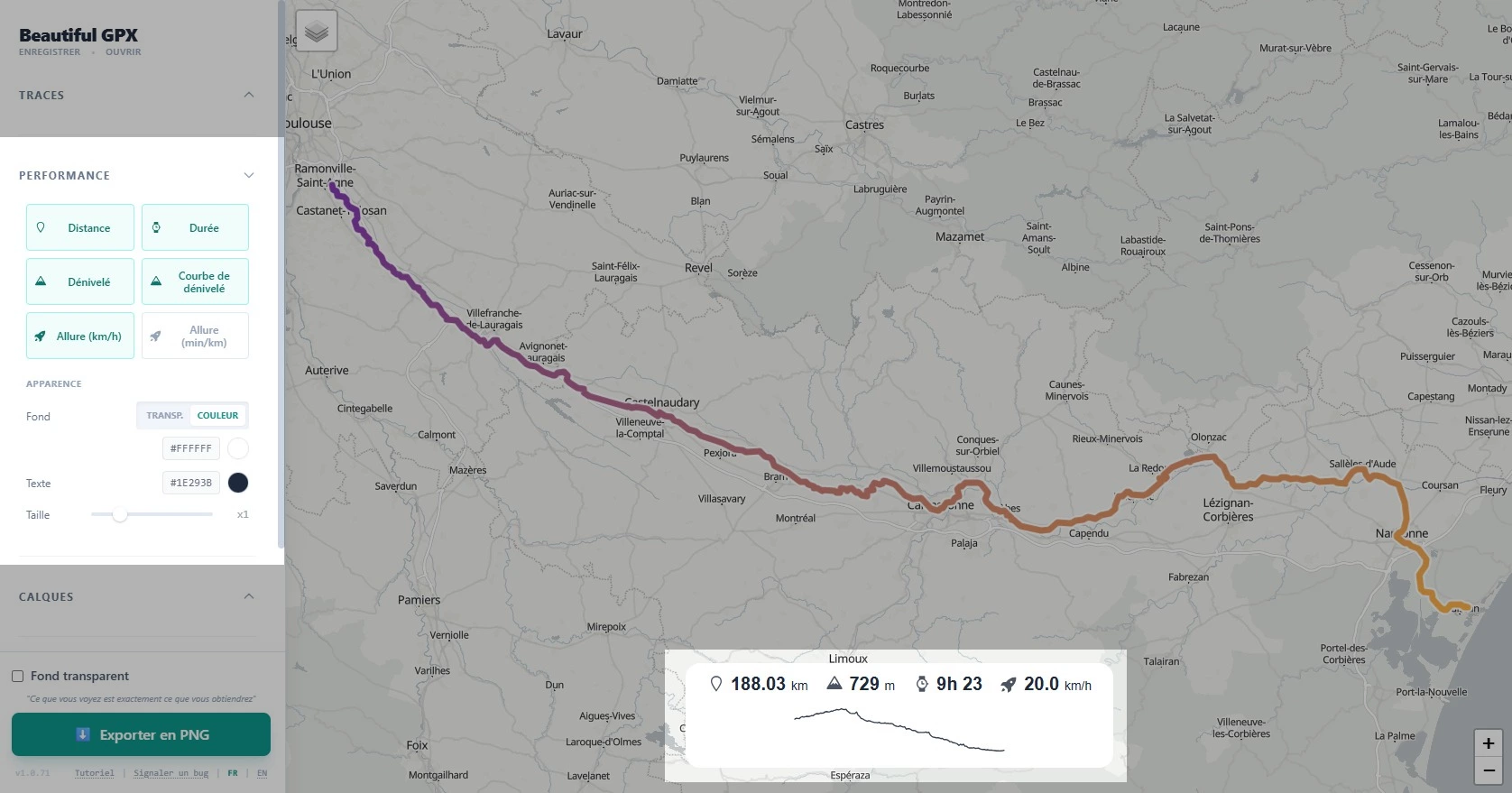
The Performance tab adds widgets on the map: speed, elevation gain, timer, distance… Place them wherever you like.
Step 5 Add geographic context
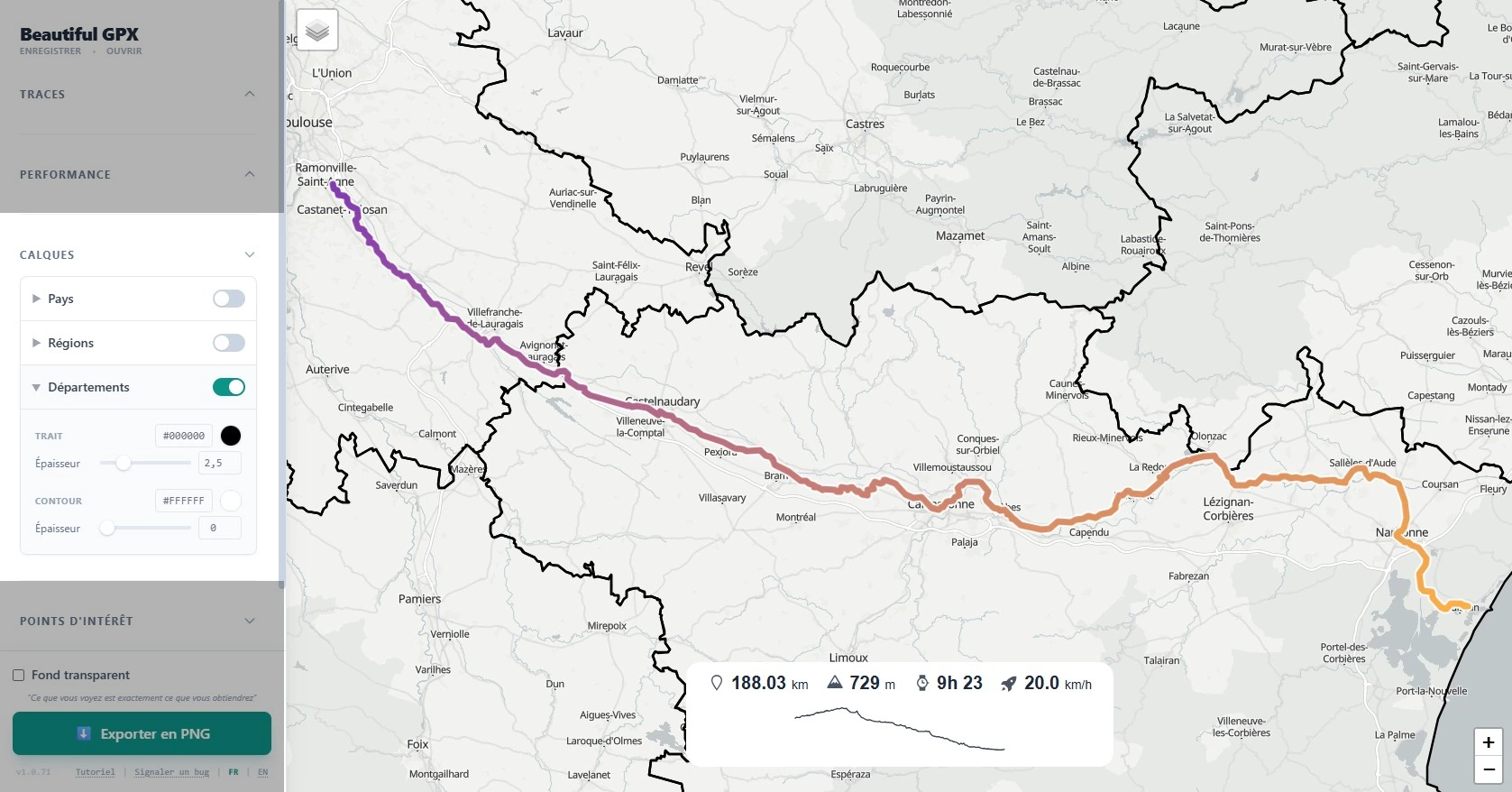
The Layers tab lets you pick one or more countries (with suggestions from your tracks), then their regions and departments when available.
Step 6 Mark points of interest
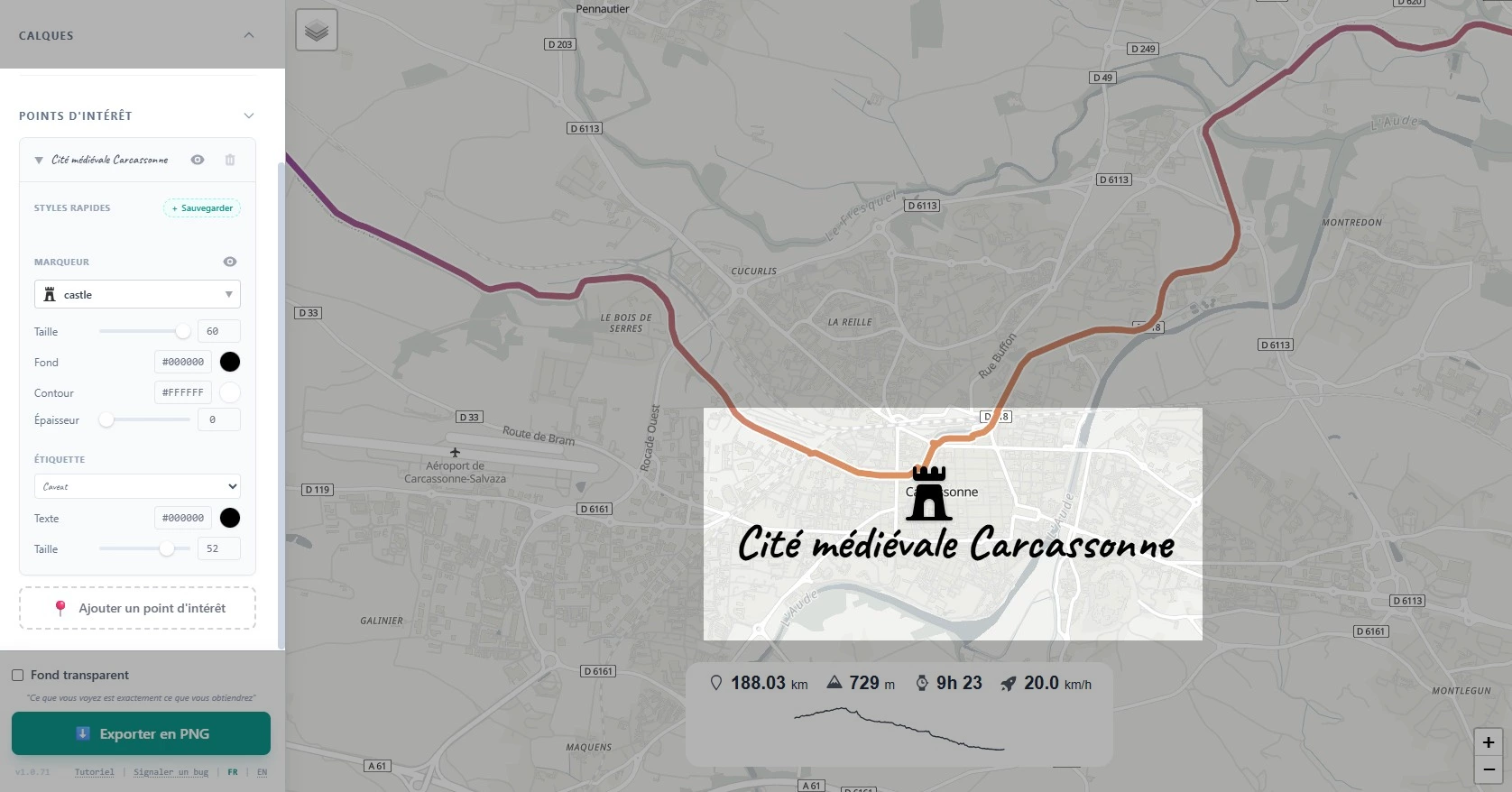
The POI tab lets you add towns, passes, camps, or numbered stages. Each marker is draggable on the map.
Step 7 Choose the map background
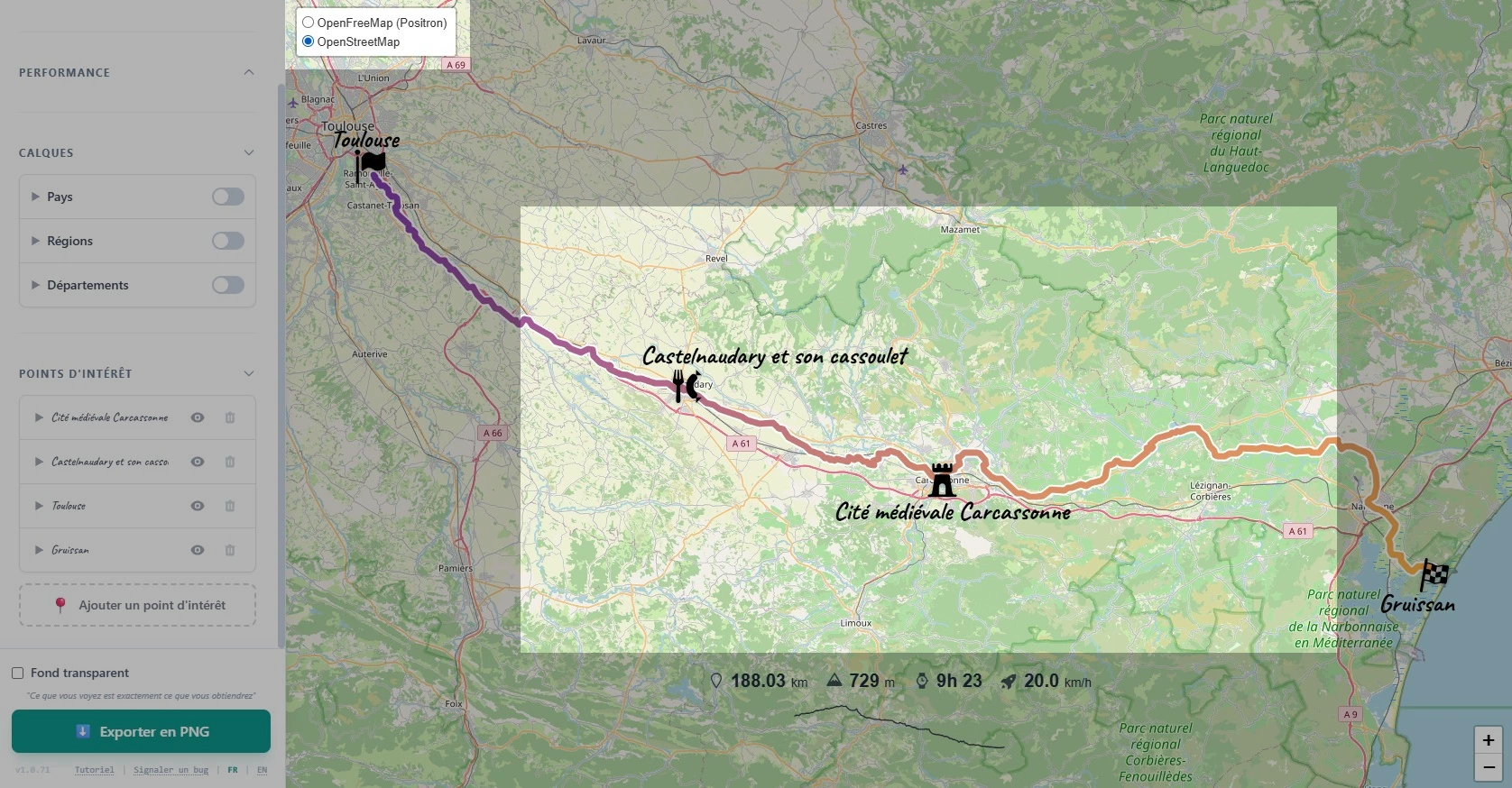
In map settings, switch the basemap style: OpenStreetMap, satellite, terrain, dark mode… depending on your export or print goal.
Step 8 Export with transparent background
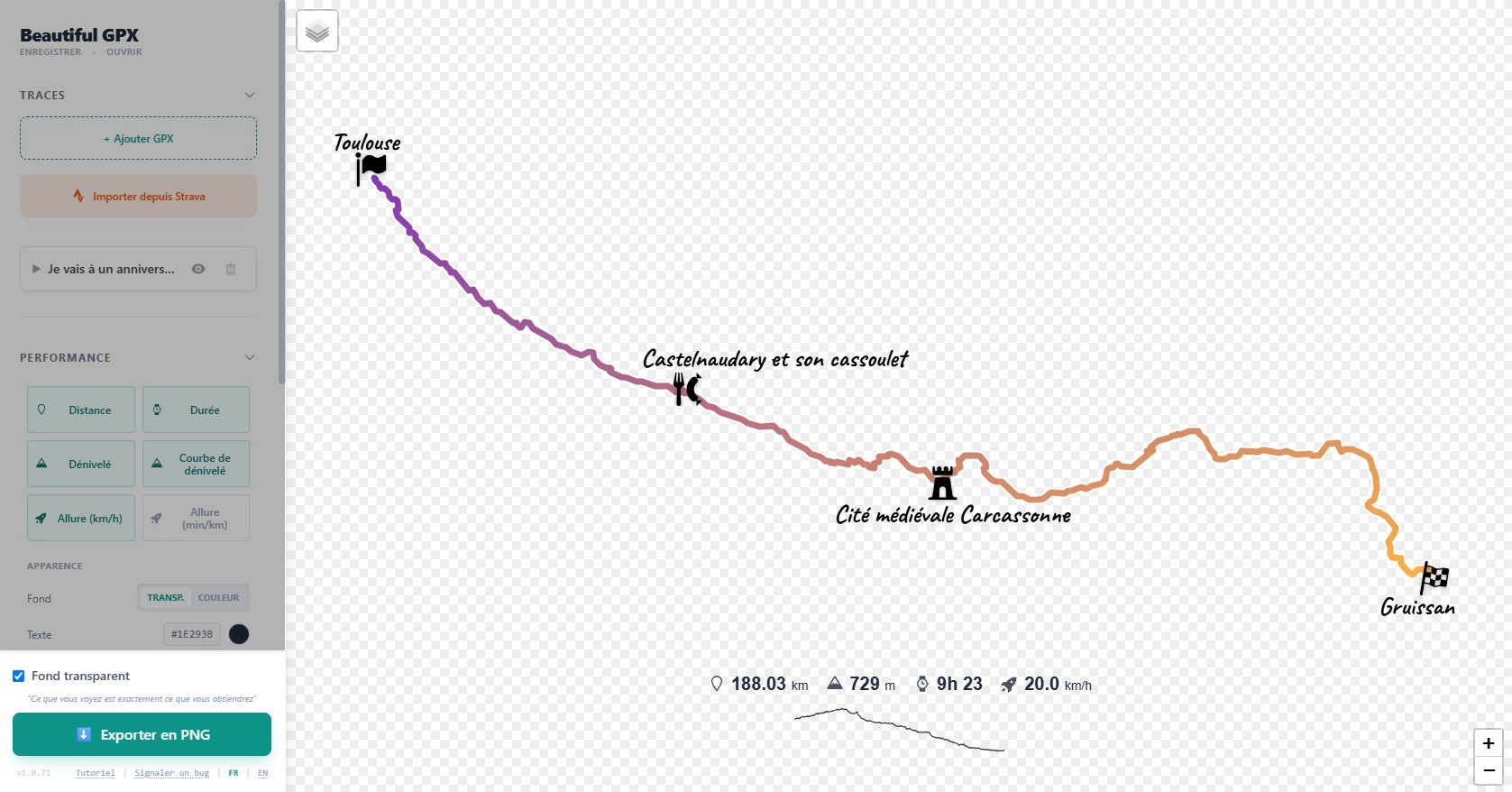
In the Export tab, check “Transparent background” to export only the track, POIs, and widgets, perfect for Instagram, video edits, or travel journals.
- High resolution for print or social media.
- Alpha channel (transparency) for photo/video overlays.
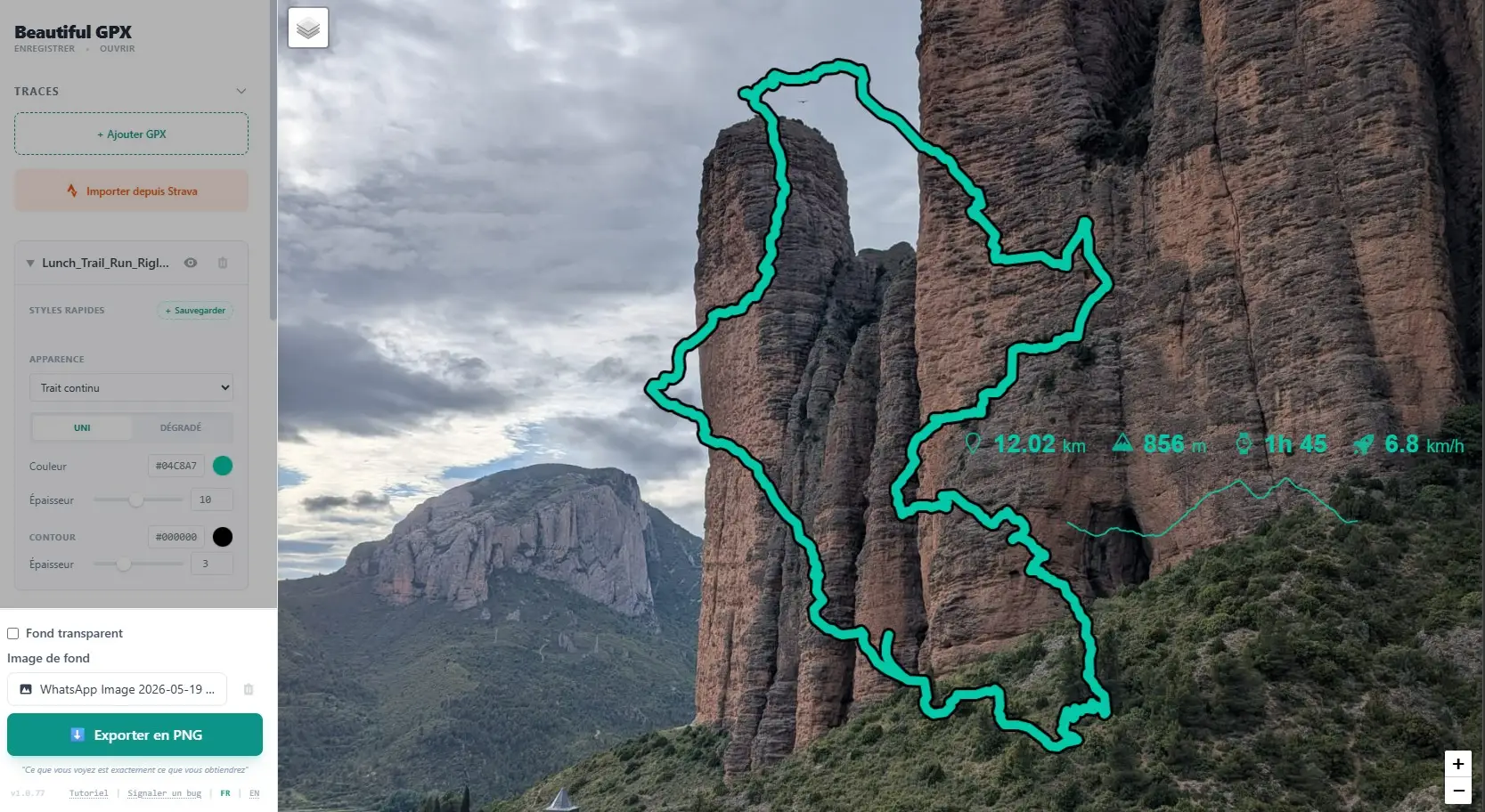
Step 9 Export with a custom background image
Still in Export, click “Choose an image” to replace the map with your own photo (landscape, paper texture, etc.). The track, POIs, and widgets stay overlaid on top.
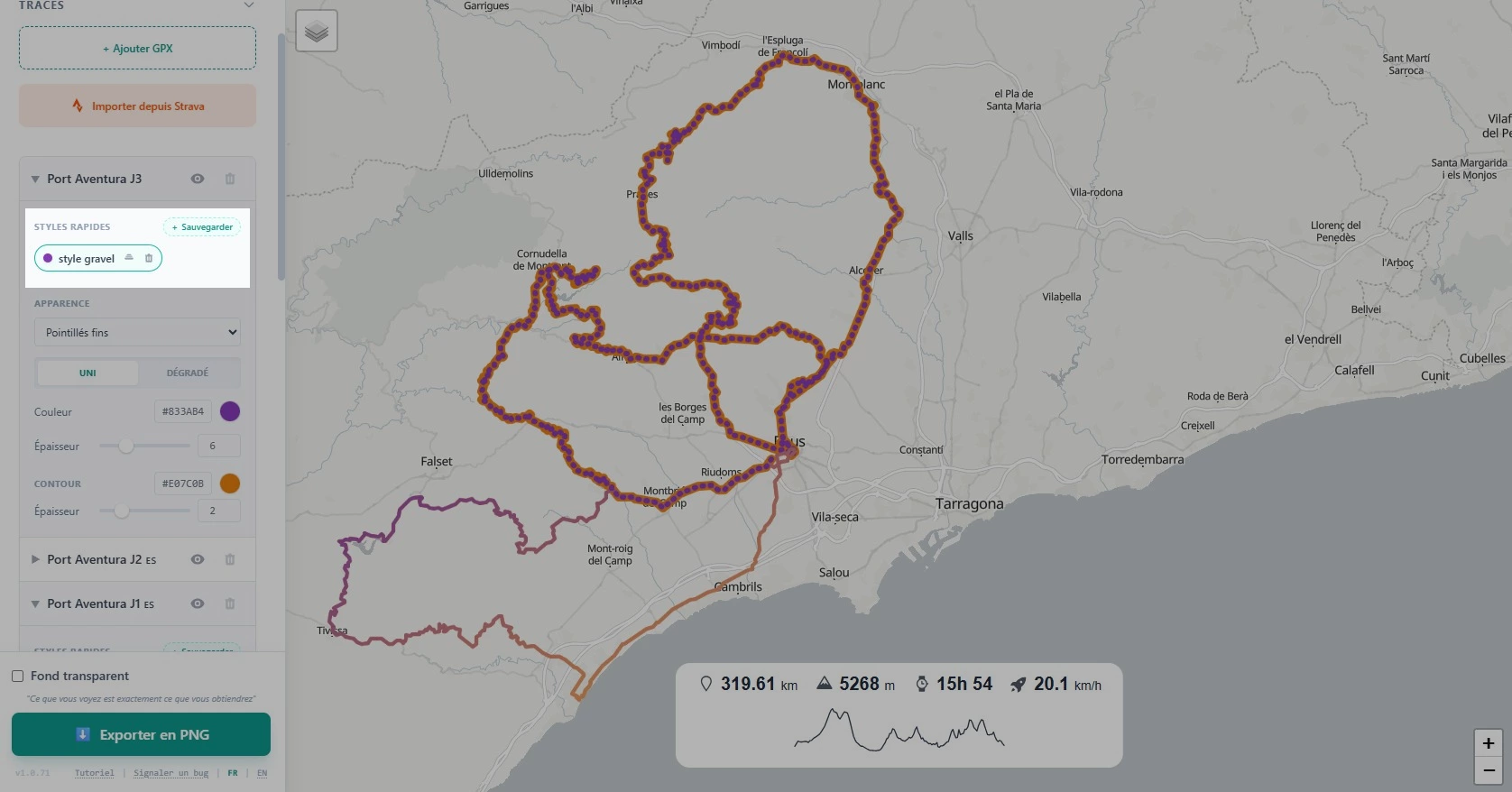
Step 10 Save a track style
Found the perfect color and thickness combo? Save the style to reuse it quickly on your next activity.
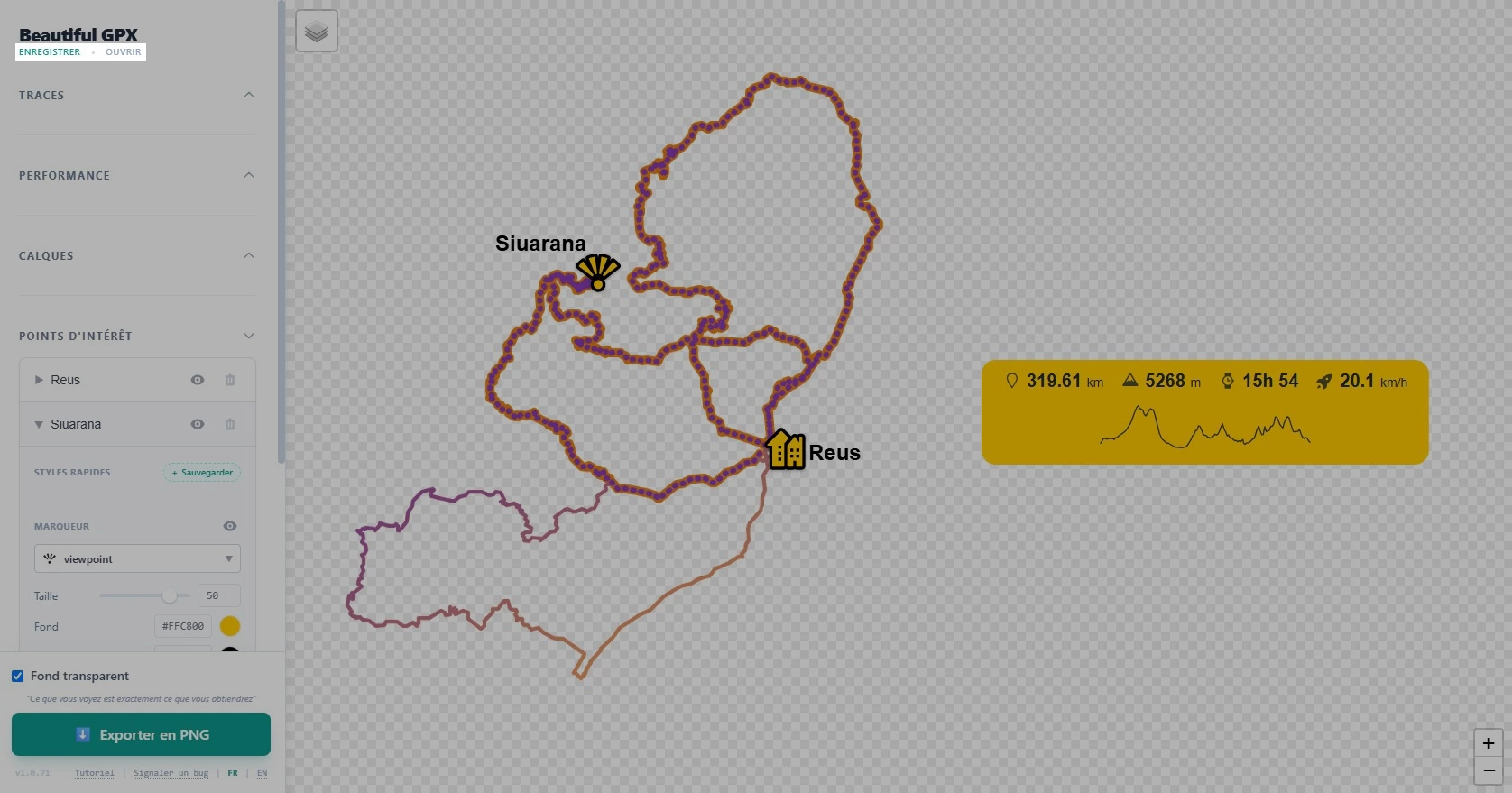
Step 11 Save the full project
The project save button stores your entire work (track, POIs, layers, widgets, basemap) in the browser. Pick up later without reconfiguring everything.
Need to overlay your track on a video? See also the video overlay tutorial
FAQ
Do I need an account?
No, the editor is free to use without signing up.
Can I import from Strava?
Yes, via Strava OAuth or by importing a .gpx file.
How do I export with a transparent background?
Export tab → check “Transparent background” → export PNG.
Can I save my work?
Yes, track styles and full projects can be saved in your browser.
Is my GPS data uploaded online?
No, processing is local; your tracks stay on your device.
What export resolution?
HD export produces a PNG suitable for print and social media.