How to Overlay GPS Tracks on Your Videos (Free GoPro & Drone Overlay)
You captured amazing footage of your last bike ride or hike with your GoPro or drone? One thing is missing to make the video perfect: geographical context. The problem is that map screenshots (Strava, Google Maps) often have an opaque background that hides your video. In this tutorial, discover how to generate a transparent background map in seconds with Beautiful GPX, compatible with Premiere Pro, DaVinci Resolve, Final Cut, and CapCut.
Step 1 Prepare Your Track
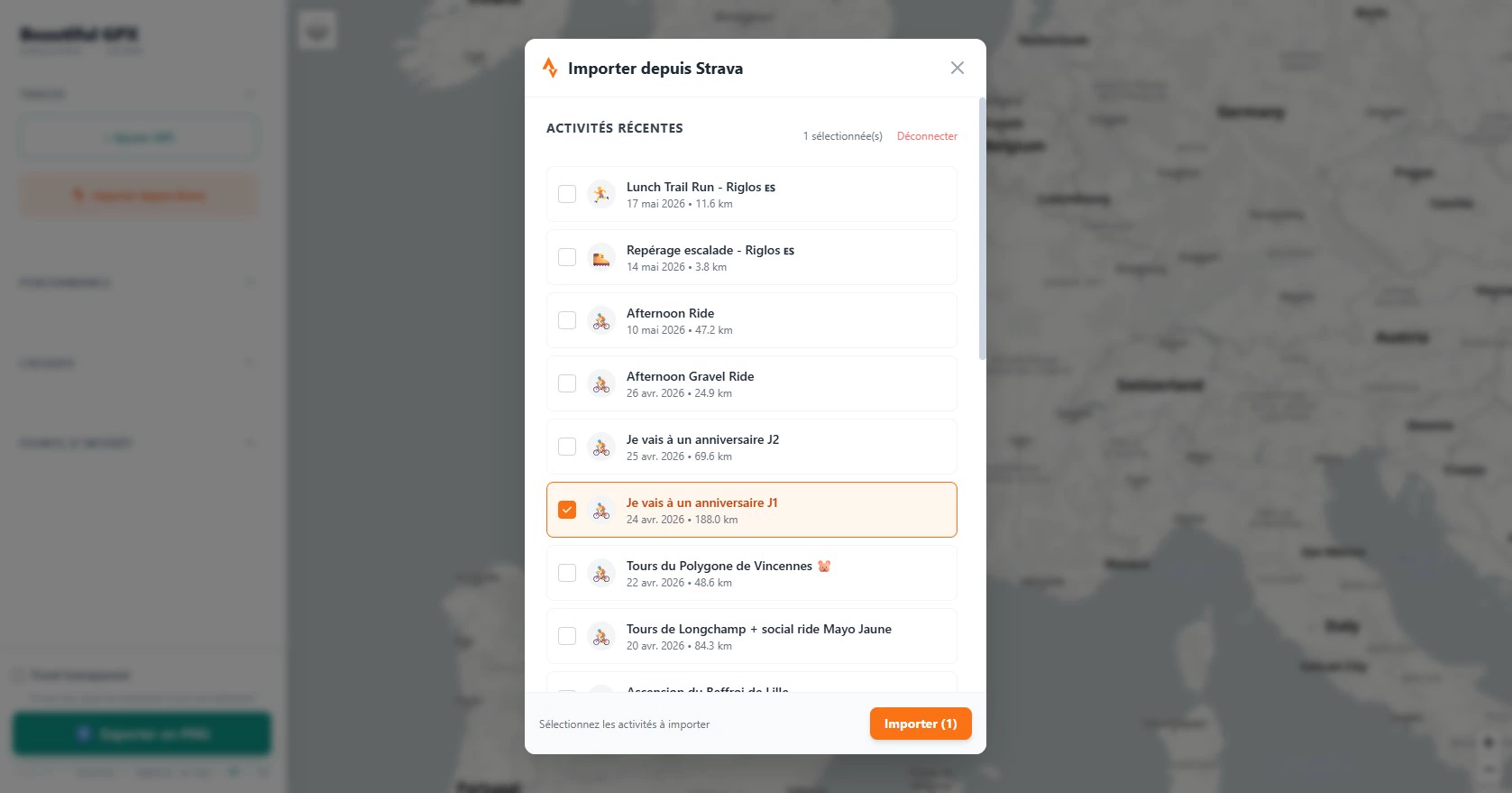
Go to the
- Strava Connection: Directly retrieve your latest activity.
- File Import: Import your .gpx or .fit file from your GPS device (Garmin, Wahoo, Suunto).
Step 2 The Secret to Transparency
This is where the magic happens. For a professional overlay result:
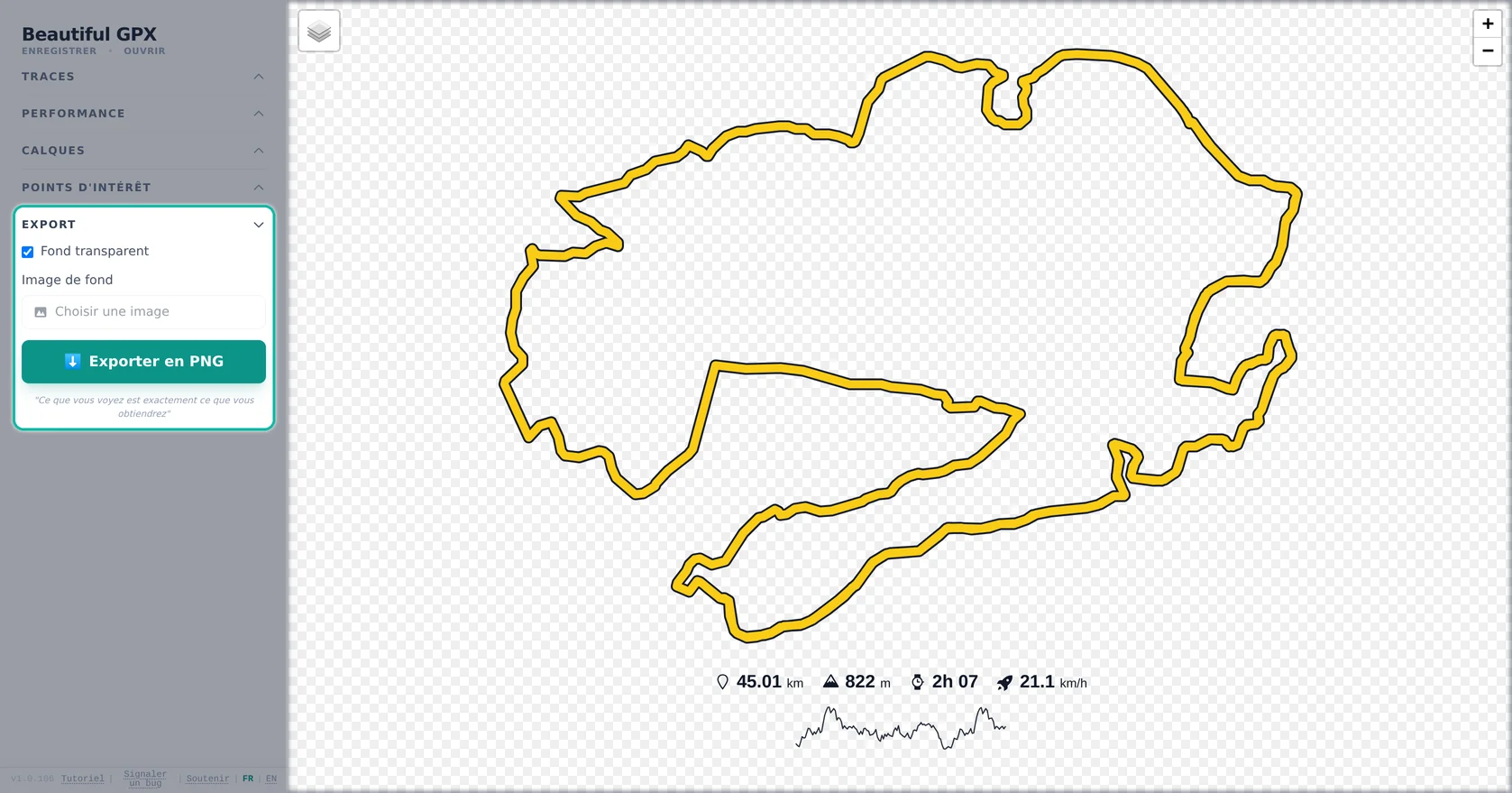
- Go to the Export tab.
- Check the "Transparent Background" box. The background map disappears to leave only the track.
💡 Pro Tip: Choose a bright track color (Neon Red, Cyan, or Yellow) and increase the line thickness. This ensures the route remains visible regardless of the video color underneath.
Step 3 Export and Editing
Click the Export to PNG button. You get a high-definition image with an Alpha channel (transparency).
In your editing software:
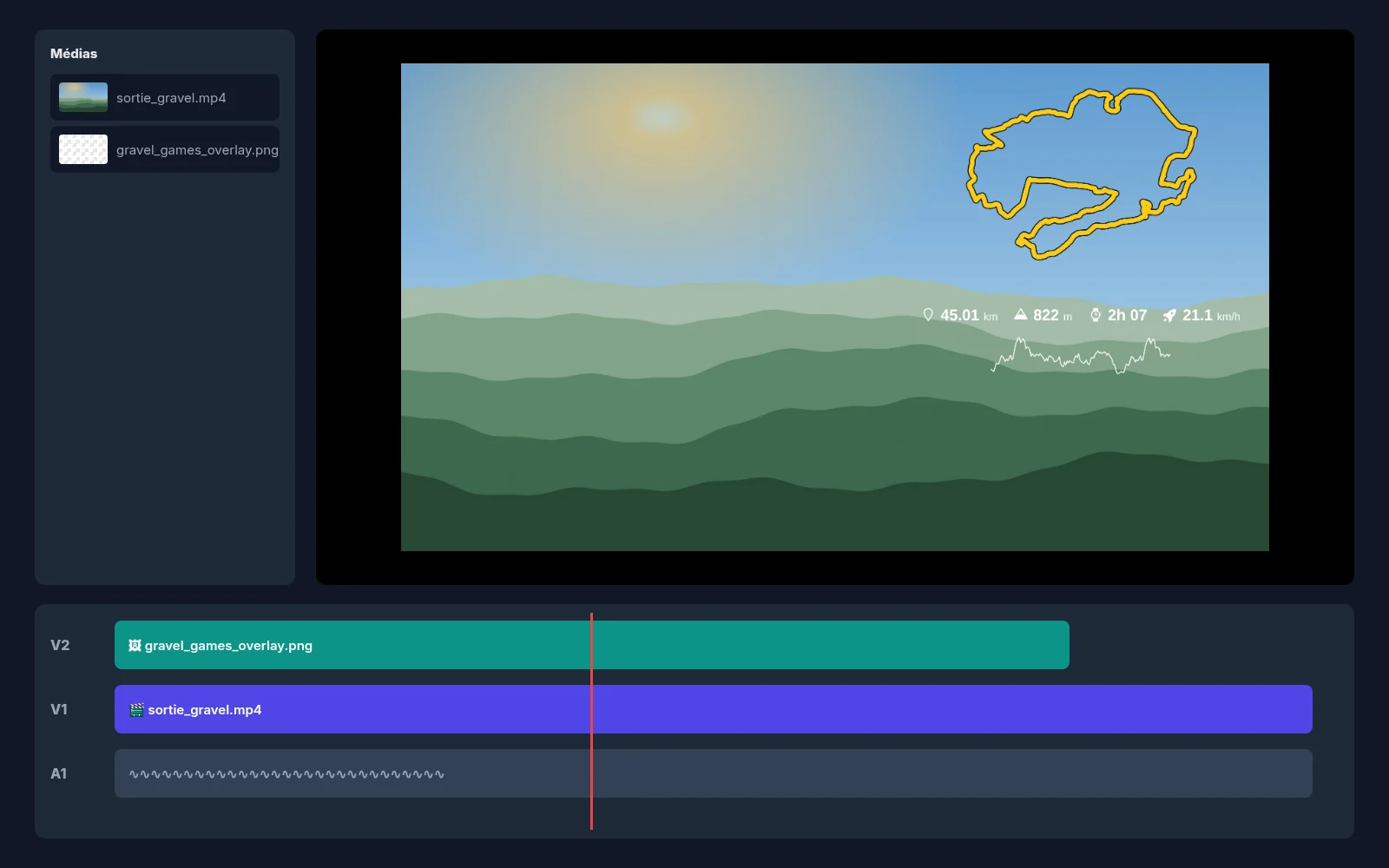
- Place your video on Track 1.
- Import the generated PNG and place it on Track 2 (above).
- Adjust the size and position so as not to hide the main action.
🚀 Bonus Tip: You can also enable the "Distance" and "Elevation" widgets in Beautiful GPX to display your race telemetry directly on the video!
FAQ
Which video editors are supported?
Premiere Pro, DaVinci Resolve, Final Cut Pro, CapCut, and most editors that support transparent PNG layers.
Which export format should I use?
PNG with transparent background (alpha channel) is ideal for overlaying a track on video.
Can I import a Strava activity?
Yes, connect Strava or import a .gpx / .fit file from your GPS device.
How do I keep the track visible on any footage?
Pick a bright color (red, cyan, yellow) and increase line thickness in the editor.
Is my GPS data sent to a server?
No, processing happens in your browser; your files stay on your device.
Can I show distance and elevation on the video?
Yes, enable Performance widgets before exporting with a transparent background.