Merge multiple GPX files into a single image
A bike trip, a multi-day hike or a weekend of rides rarely fits in a single GPX file. Beautiful GPX brings all your tracks onto the same map, adds up the stats and exports everything as one image, ready to share, print or drop into a photo/video edit.
Why combine several GPX files in one image?
- Show a multi-day route in full (Day 1…Day 7) instead of one map per day.
- Stitch back a ride recorded in several pieces (break, flat battery, restarted watch).
- Display the stats of the whole trip: cumulative distance, elevation and time.
Steps
- Import your GPX files in one go (multiple selection) or tick several Strava activities.
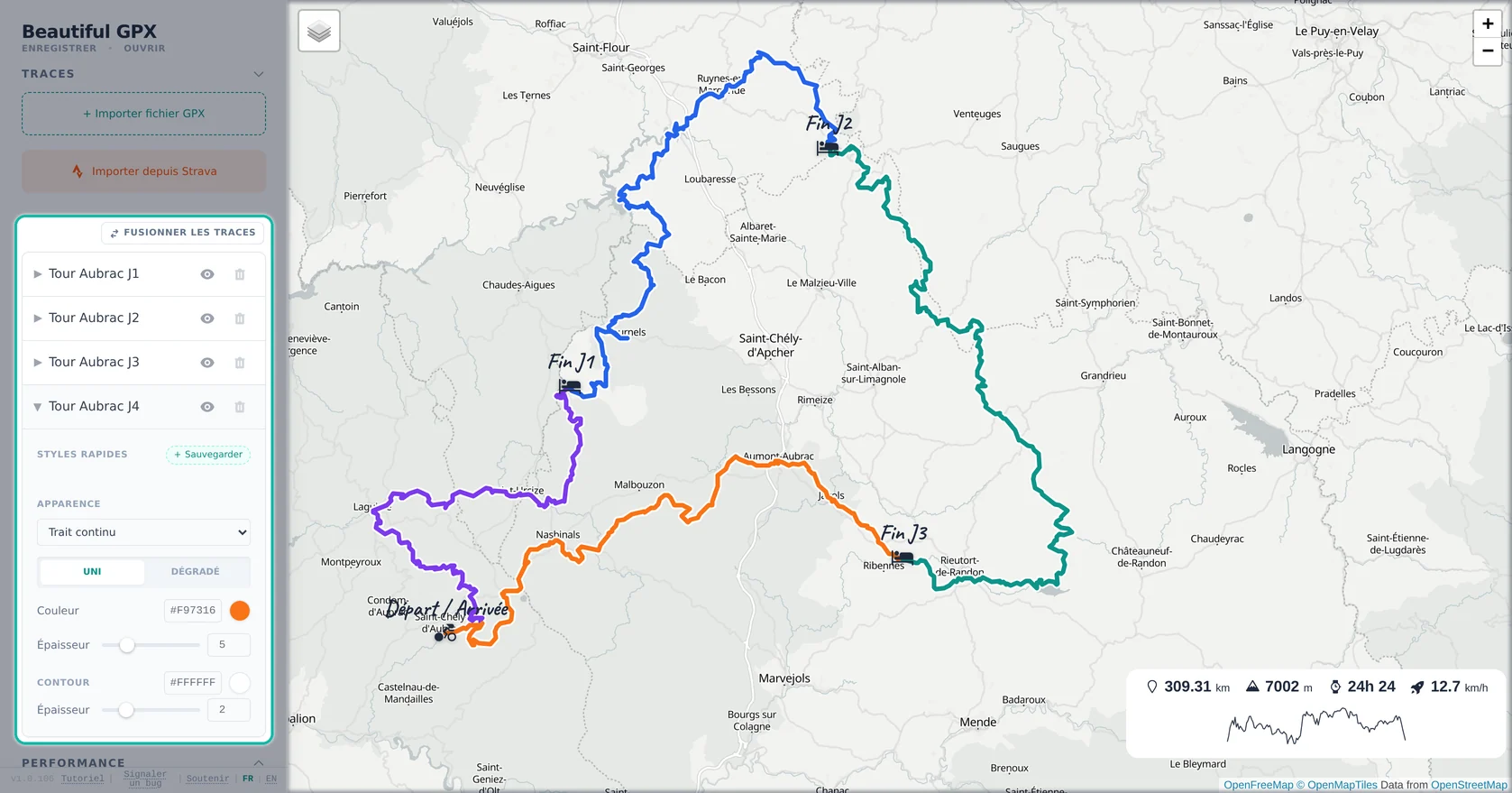
- Give each stage its own color, thickness and outline, or click “Merge tracks” to keep a single one.
- Add POIs: start, end of each stage, passes, camps.
- Choose a basemap, or enable the transparent background.
- Export a high-resolution PNG.
Tip: the Performance panel adds up all visible tracks. Hide a stage (eye icon) to remove it from the image and from the totals.
Separate stages or one merged track?
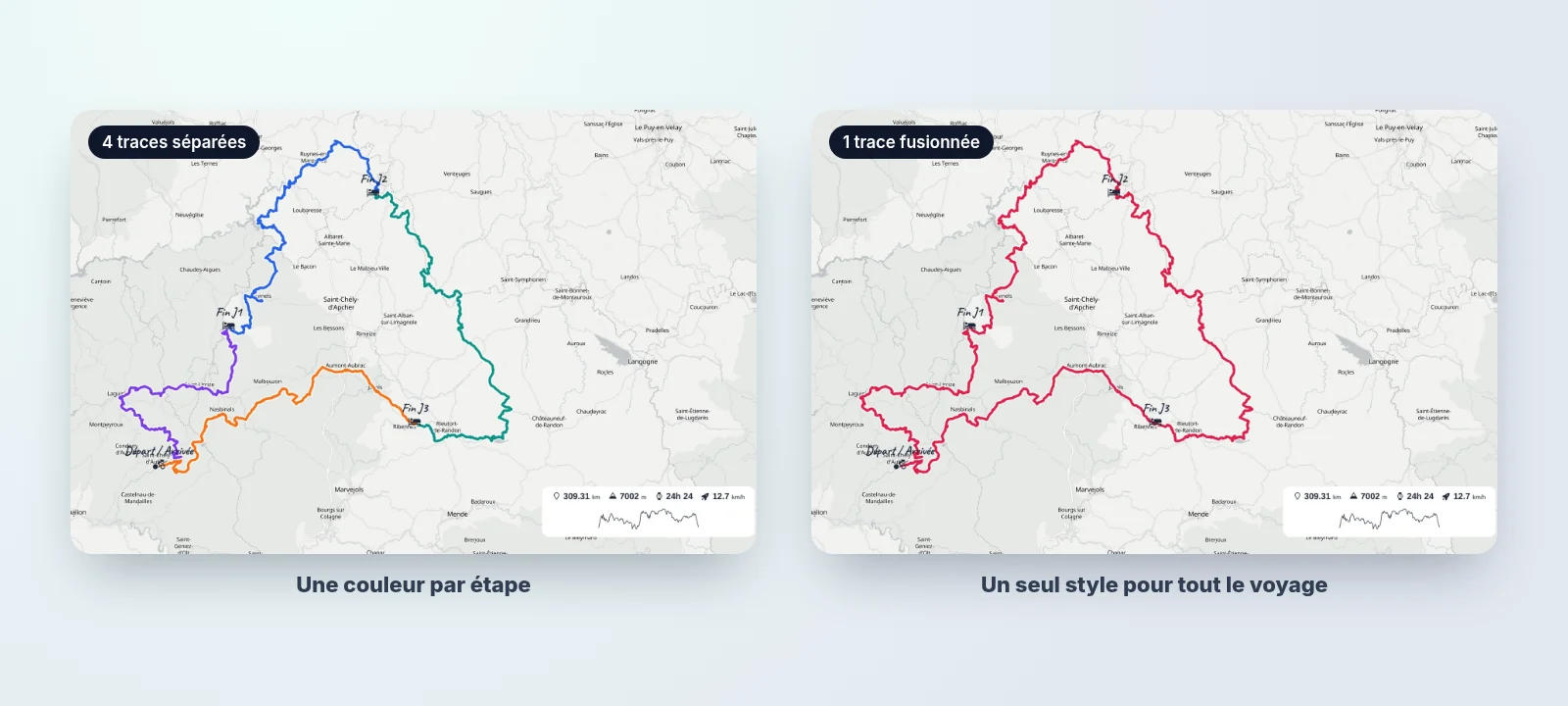
Both approaches give the same map and the same stats: only the styling changes.
- Keep stages separate: each file keeps its own style. Ideal to color-code days or hide a stage on the fly.
- Merge tracks: all tracks become one, with a single style for the whole trip. Stages are joined in list order and merging is permanent: re-import your files to go back.
Recommended styles (bike trips / hiking)
- One color per stage with consistent thickness.
- For a merged track: a bright color and a white outline so it stands out from the basemap.
- A clean basemap for printing; a richer one for sharing.
Print export vs overlay export
Two exports are often useful for a full project:
- Print: map with basemap + clean labels, exported in high resolution.
- Overlay: track line only as a transparent PNG to layer on photos/videos.
FAQ
Can I import several GPX files at once?
Yes, select them all in the import dialog, or tick several activities in the Strava import.
Can I tell each day apart (Day 1, Day 2…)?
Yes, as long as you do not merge, each track keeps its own style. Add “End of Day 1”, “End of Day 2”… POIs to mark the stages.
Are the stats cumulative?
Yes, the distance, elevation and time shown cover all visible tracks, merged or not.
In which order are tracks merged?
In the order of the track list in the Tracks panel.
What if tracks overlap?
Increase contrast, adjust thickness, and avoid similar colors.
Can I add POIs (passes, camps, stages)?
Yes, POIs help you tell the story of the journey.
Does it work for bikepacking and hiking?
Yes, same workflow: import, style, POIs, export.
Can I export high resolution for a poster?
Yes, use HD export to keep lines sharp when printing.
Can I export only the line as a transparent PNG?
Yes, ideal for complex edits in other tools.
Do my GPX files stay private?
Yes, your GPX files are read directly in your browser and are not uploaded to a server.
Which basemap should I use?
For a clean souvenir: simple basemap, strong contrast, minimal annotations.